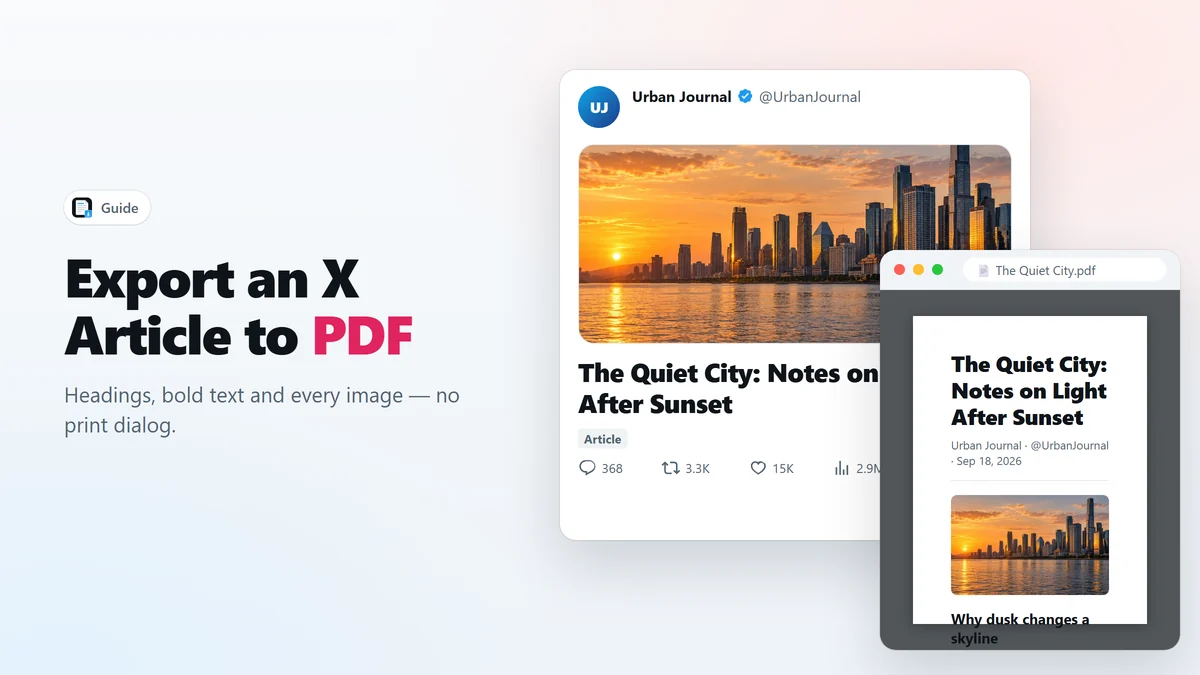
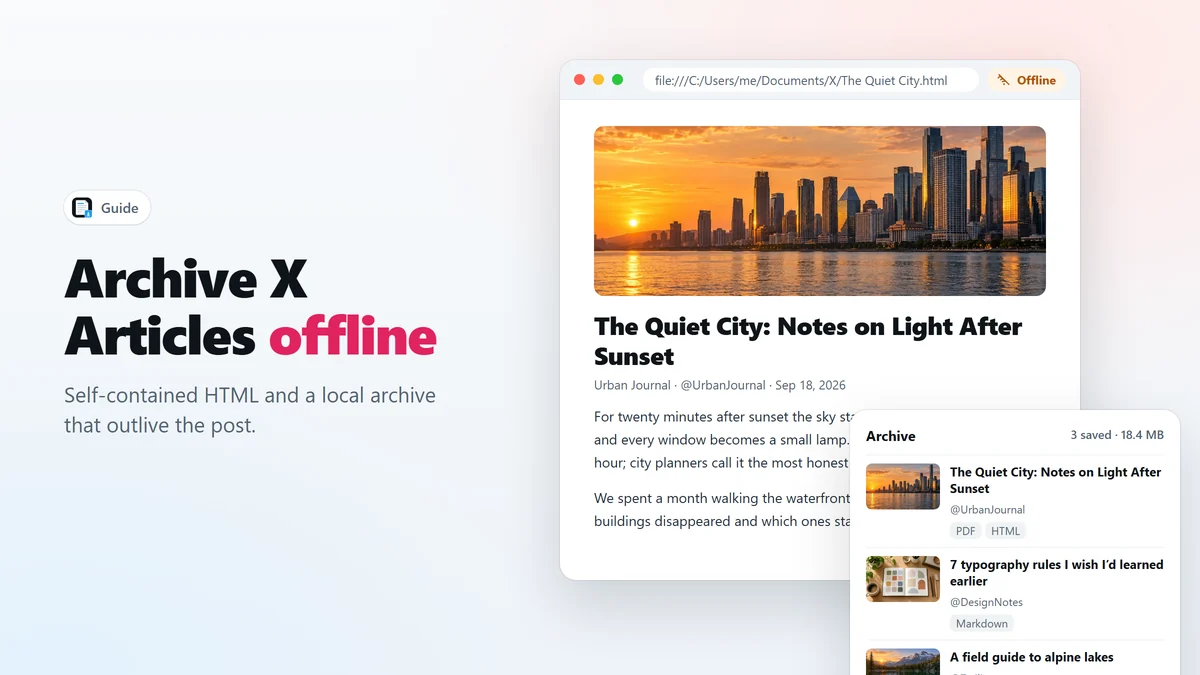
- Right-click the PDF icon from X Article to PDF and choose HTML (self-contained) for a single file that opens offline.
- Every export also leaves a copy in the extension’s local archive, which you can search and reopen.
- Keep PDFs for reading, HTML for faithful copies, and Markdown for notes.
The long posts worth keeping have a habit of disappearing: authors delete them, accounts get suspended, links stop working. A bookmark is only a pointer to something that might not be there next year. This guide shows how to keep X Articles and threads readable offline, on your own computer.
Why bookmarks are not enough
An X bookmark stores a link, not the post. When the post is gone, the bookmark goes with it. Even when the post stays, images may be served from addresses that change, and a thread you bookmarked is only the first post — not the chain of replies that made it worth saving.
Save a self-contained HTML copy
Open the Article or thread, right-click the red PDF icon and choose HTML (self-contained). The extension builds a clean copy of the text and downloads every image into the file itself. The result is one .html file that:
- Opens in any browser, with no internet connection.
- Keeps the images even after the original post is deleted.
- Keeps headings, quotes, bold text and real links.
The local archive
You do not have to remember to make copies. Every time you export — PDF, Markdown or HTML — the extension also stores a self-contained snapshot in a local archive inside your browser. Open it from the same right-click menu with Archive….
- Search snapshots by title, author or text.
- Reopen a snapshot, jump to the original post, or show the exported file in its folder.
- Set how many posts to keep, and delete the ones you no longer need.
The archive lives only on your computer. Nothing is uploaded, and removing the extension removes the archive.
PDF, HTML or Markdown?
| Format | Best for | Keeps images |
|---|---|---|
| Reading, printing, annotating, sharing a single file | Yes, full resolution | |
| HTML (self-contained) | The most faithful offline copy | Yes, inside the file |
| Markdown | Notes apps such as Obsidian and Notion | As links |
For notes, see how to convert a Twitter thread to Markdown. For a document to read later, see how to export an X Article to PDF.
Save Twitter threads offline and keep them findable
- One folder per topic. Move exports out of Downloads into folders such as
X/AIorX/Design. - Keep the title-based name. Files are named after the post’s title, which is what you will search for later.
- Back up the folder. A synced or backed-up folder protects your collection better than any bookmark list.
Frequently asked questions
Will the HTML file still work if the post is deleted?
Yes. Every image is stored inside the file itself, so it does not depend on X’s servers. It opens offline in any browser.
Where is the local archive stored?
In your browser’s own storage on your computer. It is never uploaded anywhere, and removing the extension deletes it.
How much space does the archive use?
It depends on the images. A text-only thread takes a few kilobytes; an Article with many photos can take several megabytes. The archive page shows the total and lets you cap how many posts to keep.
Can I move my archive to another computer?
The archive itself stays in the browser, but every export is also a normal file in your Downloads folder. Copy those files to keep your collection anywhere.
Is it legal to archive posts from X?
Saving public posts for your own reading and reference is what the extension is for. Respect the author’s rights: credit them when you quote, and do not republish their work as your own.
Save X Articles and threads as PDF in one click
Free Chrome extension. No account, no servers, no tracking.