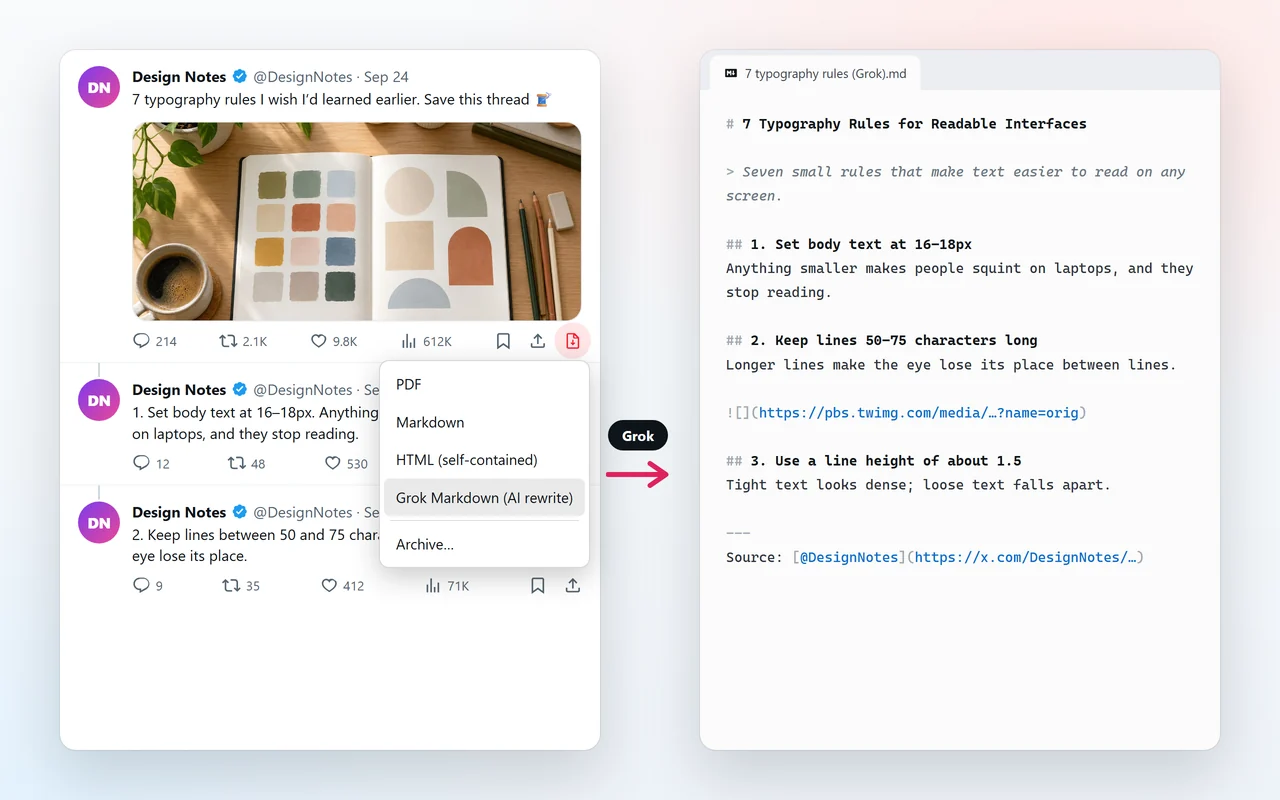
- Open the thread on x.com and right-click the red PDF icon from X Article to PDF.
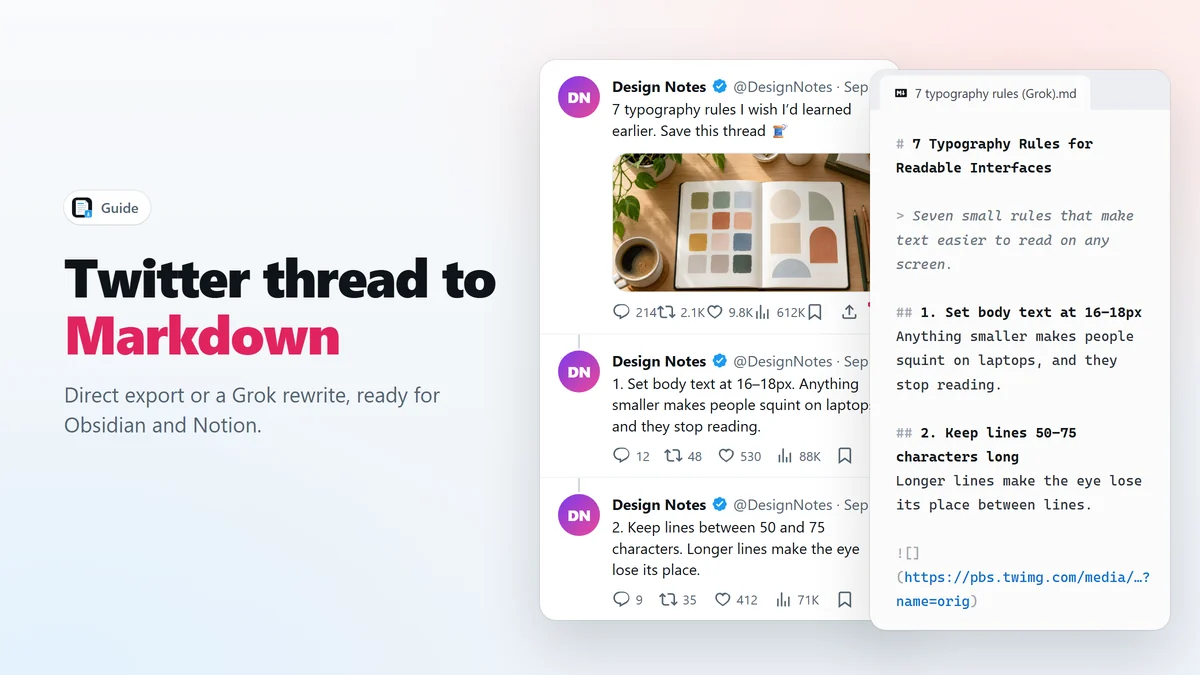
- Choose Markdown for an exact copy of every post, or Grok Markdown (AI rewrite) for one structured article.
- Either way you get a
.mdfile in your Downloads folder, ready for Obsidian, Notion or any Markdown editor.
A good thread is really a small article split into posts. If you keep notes in Obsidian, Notion or Logseq, you do not want a PDF of it — you want text you can link, tag and edit. This guide shows two ways to turn a Twitter thread into Markdown and when each one makes sense.
Why convert a Twitter thread to Markdown
Markdown is plain text with a few marks for headings, links and lists. It opens in every notes app, stays readable forever, and can be searched and edited like the rest of your notes. A thread saved as Markdown becomes part of your knowledge base instead of a file you never open again.
Option 1: export the Twitter thread to Markdown directly
Open the thread on its own page (reload once after installing), right-click the red PDF icon and choose Markdown. The extension rebuilds the author’s thread from X’s own data and writes it out as Markdown:
- Every post of the author’s thread, in order, with nothing summarized away.
- Bold and italic kept, t.co short links replaced with their real addresses.
- Images linked at full resolution.
Use it when the exact wording matters: quotes, references, anything you may cite later.
Option 2: rewrite the thread into an article with Grok
Choose Grok Markdown (AI rewrite) instead, and the extension hands the whole thread to Grok on x.com — in your own logged-in account, in a background tab — with instructions to rewrite it as one clean article. After a short wait, usually under a minute, a .md file with this shape lands in your downloads:
- A clear title and a one-line summary at the top.
- One heading per point, so tip 1, tip 2, tip 3 become sections.
- The author’s links and images kept, and a link back to the original thread.
Grok Markdown uses Grok’s Expert mode when your account has it and the default mode otherwise. The progress shows in a small notice on the page, and you can keep reading while it works.
Which Twitter thread to Markdown option should you use?
| Markdown | Grok Markdown | |
|---|---|---|
| Wording | Exactly what the author wrote | Restructured into an article |
| Structure | One block per post | Title, summary, a heading per point |
| Speed | Instant | Usually under a minute |
| Where it runs | Only in your browser | Your browser plus X’s Grok, in your account |
| Best for | Quotes and references | Study notes and reading later |
Getting the file into Obsidian and Notion
- Obsidian: move the
.mdfile into your vault folder. It appears in the file list right away. - Notion: use Import → Text & Markdown, or drag the file onto a page.
- Logseq and others: any app that reads Markdown files can open it directly.
Prefer a document you can print or annotate? The same icon saves the thread as PDF — see how to save a Twitter thread as PDF.
Frequently asked questions
Does Grok Markdown need X Premium?
It uses Grok on x.com in your own account, so it is subject to whatever Grok access your account has. It uses Expert mode when your account offers it and the default mode otherwise.
Is my thread sent to your servers?
No. The direct Markdown export happens entirely in your browser. Grok Markdown sends the thread’s text only to X’s own Grok, in your account; the conversation appears in your Grok history.
Why does the Grok Markdown option not appear?
It only appears on a post’s own page, and only when the author continued the post in their own replies. Reload the page once after installing the extension.
Does Grok change what the author said?
It is asked to restructure the thread into an article — title, summary and headings — while keeping the author’s points, links and images. As with any AI rewrite, check it before quoting it; the direct export keeps the exact wording.
Can I turn Markdown back into an X Article?
Yes. The extension also adds a Markdown import icon to X’s Article editor: paste Markdown into the body and click the icon to convert it to X’s formatting.
Save X Articles and threads as PDF in one click
Free Chrome extension. No account, no servers, no tracking.