
- Install X Article to PDF from the Chrome Web Store.
- Open the first post of the thread on its own page and reload once.
- Click the red PDF icon in the post’s action bar. The whole thread is saved as one PDF in your Downloads folder.
Some of the best writing on X is not an Article at all. It is a thread: one post, then tip 2, tip 3, tip 4 added as replies by the same author. Threads are great to read and terrible to keep. This guide shows how to save a Twitter thread as PDF in a few seconds, with every post in order, searchable text and full-size images.
Why Twitter threads are hard to save
X shows a thread as a timeline, and a timeline only keeps the posts near your screen in memory. Scroll down and the posts at the top are removed from the page; scroll up and the ones at the bottom disappear. That is why most “save as PDF” tricks only capture whatever happened to be visible.
Replies from other people are mixed in between the author’s posts, and long posts are often cut off behind a “Show more” link. A thread you want to keep ends up as a patchwork of fragments.
How to save a Twitter thread as PDF, step by step
- Install the extension. Add X Article to PDF to Chrome or Edge from the Chrome Web Store. It is free and needs no account.
- Open the thread on its own page. Click the timestamp of the first post so the address bar shows
x.com/<user>/status/<id>. - Reload the page once. This is only needed the first time after installing or updating: the extension reads the thread from the data X sends while the page loads.
- Click the red PDF icon in the action bar of the first post, next to Bookmark and Share. The icon appears when the author continued the post as a thread.
- Find the PDF in your Downloads folder. It is generated in a background tab, so you never leave the page and no print dialog pops up.

Right-clicking the icon opens a menu with the other formats: Markdown, self-contained HTML, and Grok Markdown, which rewrites the thread into one article. See how to turn a Twitter thread into Markdown.
What you get when you save a Twitter thread as PDF
Instead of scrolling and capturing the screen, the extension rebuilds the thread from X’s own data. It keeps the author’s posts in order and drops other people’s replies, so the PDF reads like a single article.
- Every post, complete — long posts are not cut off at “Show more”, and posts that were scrolled out of view are still included.
- Real text — search it, select it, copy a quote, or highlight it in any PDF reader.
- Full-size images — photos are included at their original resolution, in the place the author put them.
- Real links — shortened t.co links are replaced with the address they point to.
- Bold and italic — formatting in long posts is kept.
Other ways to save a Twitter thread as PDF, and where they fall short
| Method | What you get | The catch |
|---|---|---|
| Browser Print → Save as PDF | Whatever is on screen | Posts outside the viewport are missing, the sidebar and replies are printed, layout breaks across pages. |
| Screenshots | Images of the thread | Text cannot be searched or copied; long threads need dozens of images. |
| Unroll bots | A web page on someone else’s site | You have to post a public reply to summon the bot, and the result lives on their server, not on your computer. |
| X Article to PDF | One PDF file on your computer | Needs Chrome or Edge on a desktop computer. |
If the thread comes out short
- Reload once. If the extension did not catch the thread data, it falls back to reading the page and tells you so. A reload fixes it.
- Start from the first post. Open the thread from its first post, not from a reply in the middle.
- Keep the tab in front. Chrome pauses image loading in background tabs, so stay on the page until the export finishes.
- “Started debugging this browser”. That notice is expected: it is how the extension prints a real PDF without a dialog. It closes when the export is done.
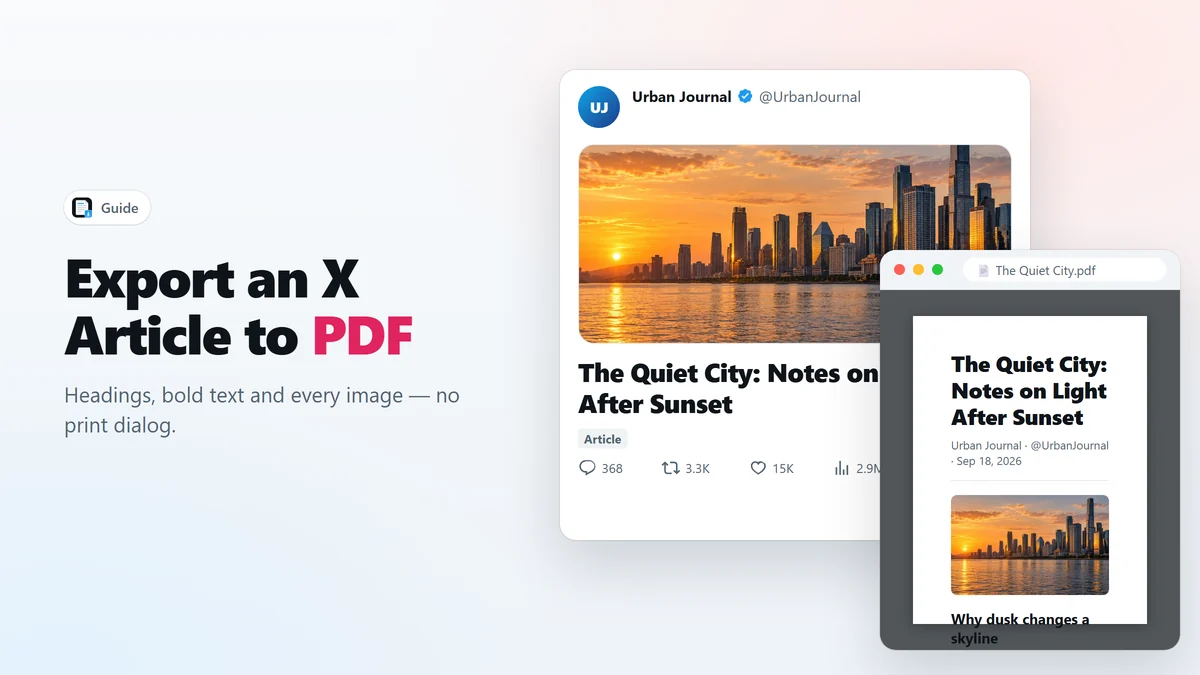
Saving an X Article instead of a thread? The steps are the same; see how to export an X Article to PDF.
Frequently asked questions
Does it save the replies from other people too?
No. It keeps the author’s own thread — the posts they wrote as a chain of replies to themselves — and leaves out everyone else’s replies, so the PDF reads like one article.
Can I save a thread I am not the author of?
Yes. You can save any public thread you can read on x.com, for your own reading and reference. Credit the author if you quote it.
Why do I have to reload the page once?
The extension reads the thread from the data X sends when the page loads. A page that was already open before you installed the extension loaded that data too early, so one reload lets the extension see it.
Is the text in the PDF searchable?
Yes. The PDF contains real text, not an image of the page, so you can search it, select it and copy from it.
Does it work on a phone?
No. Mobile browsers do not run Chrome extensions. Use Chrome or Edge on a Windows, macOS or Linux computer.
Save X Articles and threads as PDF in one click
Free Chrome extension. No account, no servers, no tracking.